
Mumbai, 6 October 2026. Students who read their notes in the munotes study room can now highlight them and write their own notes on them, right inside the chapter they are reading. From today it is switched on for every student who has notes in their study room, on a phone or on a laptop.
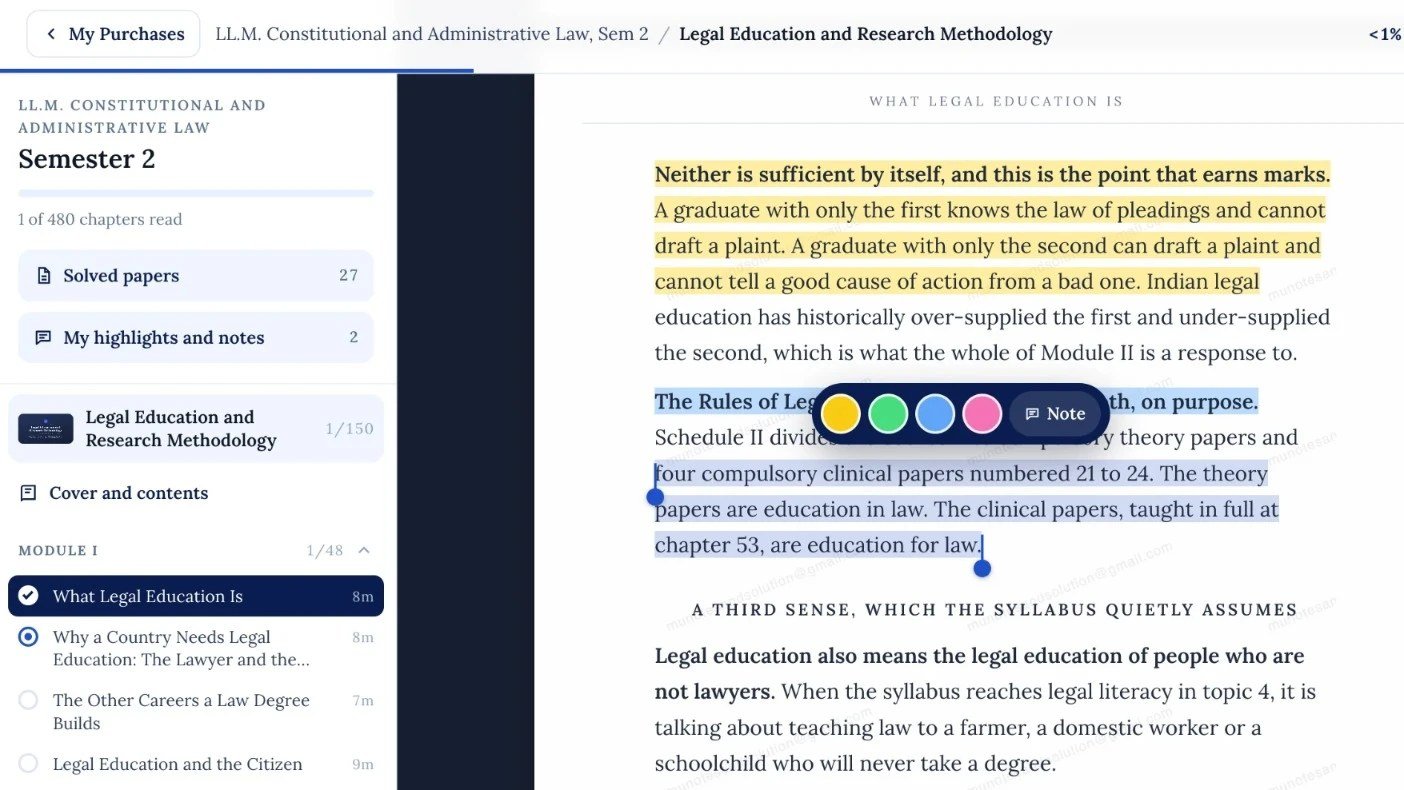
A chapter in the munotes study room: one passage highlighted in yellow, a second being marked in blue, and "My highlights and notes" in the sidebar.
It started with an email. A first-year law student wrote to us that there was no way to mark anything in the notes. On paper, a student underlines the lines that matter, writes in the margin, and comes back to those marks before the exam. The notes on munotes are read on the website, so the marking now happens on the website too.
"A student who reads on a screen should be able to do what they would do with a printed book: mark what matters and come back to it," said the munotes editorial desk. "Now every highlight and every note is kept in one place, in the order of the book."
The short version
- Highlight in four colours: yellow, green, blue and pink.
- Write your own note on any highlight, up to 2,000 characters.
- Find everything in one place under "My highlights and notes", in the order of the book.
- Private to you. Your highlights and notes are saved to your account, and only you can see them.
- The same on every device. Sign in on your phone or your laptop and the same highlights are there.
How to highlight
- On a phone: press and hold a word for about half a second, then drag the two handles over the words you want. A small menu opens: pick a colour, or tap Note to write a note.
- On a laptop or desktop: drag across the words, or double-click a word. The same menu opens.
- To change a highlight: tap it. You can change its colour, edit the note, or remove it. If you remove one by mistake, Undo brings it back for a few seconds afterwards.
A note shows as a small mark at the end of its paragraph. Tap the mark to read the note.
Everything you marked, in one place
Every semester has a "My highlights and notes" page. It lists everything you have marked in that semester, across all your subjects, in the order of the book. You can filter by subject and by colour, and "Show in the chapter" takes you back to the exact place you marked.
There are three ways in: the "My notes" button under each chapter title, the "My highlights and notes" row at the top of the contents, and the "My notes" chip on the semester page.
Who can use it
Highlights and notes work in the munotes study room, on the notes of the semesters a student has there. They are not on the public pages of the website, and they are not on solved papers yet.
Questions students ask
Can anyone else see my highlights or notes?
No. They are saved to your account, and only you can see them. Our privacy policy lists them among the information we store.
Does it work on an iPhone?
It needs iOS 17.2 or later. On an older version, the chapter reads exactly as before, without the highlighter.
What happens to my notes if my access to a semester ends?
Your own notes stay yours. "My highlights and notes" still opens and shows everything you wrote. The book's own lines are shown there only while you have that semester's notes.
Can I download the notes?
No. The notes are read on munotes.in, on a phone or a laptop. When a mistake is corrected, every reader sees the corrected page, and your highlights and notes are there wherever you sign in.
What if something does not work?
Every page has an Issue button at the bottom right. It opens an email to us with the page already named, so we know exactly where to look. Suggestions are welcome the same way.
About munotes
munotes (munotes.in) is an independent study website for students of Mumbai University and its affiliated colleges. It publishes syllabus pages, previous year question papers, and notes written to the current syllabus. munotes is not affiliated with, endorsed by, or officially connected to the University of Mumbai.
For questions, write to us through the contact page.